Saturday, 15 June 2013

An in depth hands on look at the new Apple iOS 7 features with screenshots

The apple iOS 7 beta is already a hit! A full packed OS with many new features. An article from appleinsider.com website states that "According to ad firm Chitika, Apple's latest iOS 7 beta accounts for 0.22 percent of all U.S. iPhone and iPod touch traffic across its network, double the 0.11 percent seen by the third iOS 6 beta last year." Now this is just great!

Here is a pictorial walk-through of what this latest monster has to offer.


The Apple iPhone in all its great feel with the iOS 7


This is how your latest Apple iPhone with iOS 7 will look like


Something that we have been missing on an Apple iPhone, a toggle bar. iOS 7 comes with an easy use toggle bar that will help you access WiFi, Bluetooth, Airplane modes,camera,torch etc at one place


A look at the new Clock interface  of the Apple iOS7 beta


The new feel good interface of Apple iOS 7. The first image shows you how clearer the backgroung pictiure looks at all angles. The second image shows how iOS 7 helps you take pictures with multiple  modes so that you can select the best shot mode. The third image shows how Apple iOS 7 automatically arranges pictures taken from camera into the respective folders with regards to your locations.


The intelligent system in the Apple iOS 7 helps you automatically rank  applications according to your use so that its easy for the user to use the apps.


The Password lock screen of the the latest iOS 7


Now its easy for you to type mails or messages. Apple has rearranged the location of  Add on parts  for an easy access with the help of iOS7.


An all new Siri for iOS 7


Airdrop  that helps users share files with other supported Mac computers running OS X 10.7 or later and iOS devices running iOS 7 or later without the need of a Wi-Fi network or any configuration and without the need of USB mass-storage devices (Wikipedia)

The look of it says it all. With all the 'war' happening between Android and iOS, Apple has come up with a real winner here. Will have to wait for more user reviews and see where exactly iOS 7 will place apple in the market! 


Wednesday, 5 June 2013

How to trace or track an unknown caller from a mobile number using your Android phone

Is there an application that can track an unknown number? Can you track a caller location? Is it possible to trace unknown calls? Can I block spam calls? These are a few questions that would be bothering you when you see a call from an unknown number. Today, It is possible to track who called you from where!

All you need is download a freeware using your android smartphone from the Google Play store - Truecaller.

True caller Android application
Features as mentioned in the Playstore:

• Lookup mobile and landline numbers from all over the world.
• Caller ID - See who the unknown caller is before answering (Requires 3G or Wifi).
• Call Blocker - Block calls from your personal blacklist and block common spam callers thanks to the community blacklist.
• Social connected - Connect to your Facebook or LinkedIn account to get your friends latest social status information immediately when they call you.
• Update Phonebook - Keep your phonebook up-to-date with your friends latest address info, pictures and much more.
• Call log - see all incoming and outgoing calls plus searches made in one single view.

There is a web version available for this app. You can find it here.


An easy way to fix the 'Solve Unfortunately exchange services have stopped' error on your Android smartphone

Is there a way to fix Microsoft exchange service errors on your android smartphone? Has the Email service suddenly stopped on your Android due to his error? Is there a way to solve the problem? Yes... For sure (hopefully!) you can! Just follow these simple steps.

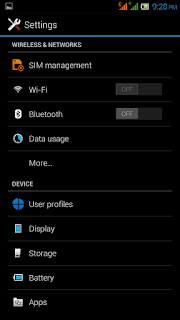
1. Go to your Phone settings
2. Scroll down to 'Apps' or 'Applications'
3. You might see options like 'Downloaded', 'Internal SD', 'Running' and 'All'. You have to swipe towards 'All'.
3. Scroll down to 'Email'
4. Now do a 'Clear Data' and 'Clear Cache'.

Here is a pictorial representation.

Solve 'Unfortunately exchange services have stopped' issue on your Android

This worked for me. Hope it does for you too! Please do post comments and let know if these steps worked for you too. 

Tuesday, 4 June 2013

How to check the website traffic on your smartphone using Google analytics application

Is there an application on play store similar to Statcounter that helps you count your website statistics on the go? How to set up Google analytics on your smartphone? How to track realtime web traffic on your smartphone? This small article will help you understand what is the best app available on playstore for this purpose.

If you look for Google analytics on the play store, there will be two applications that pops up in the result tab. One is the official aanalytics app by Google and another an app named gAnalytics by e6bapps.us. I personally thought of giving the unofficial version a try as it had more no of positive votes as compared to the official app on the play store.

I wasn't expecting much from this app. But to my surprise, the application works just superbly. It has almost all the options including real time tracking. You can track the page views according to dates, weeks,month and years. There is a premium version that is ad free but I am pretty happy with the normal unpaid version.


gAnalytics (Google Analytics) helps you track real time data on your Android smartphone

This app has been a boon to me to track my website statistics in real time as I am on move always. If you want, give it a try and let know if it worked for you. Do post in comments if you have any queries on the same.


Monday, 3 June 2013

A guide on how to set up Google Now on your Android smartphone

This is a small image based tutorial that will let you know how to set up  Google Now on your android smartphone.

Firstly go to play store and Install 'Google Search' app.
Now Install and launch the application. You will see a window like this. The first few sections shows you what exactly Google Now can do for you


In this particular instance, what you see are two options that Google now has for you.


In one of the sections, I have added Barcelona (Barca) as my favorite soccer team. So what ever update Google can find that's related to your choice, it shows on the page. You can see the 4-1 Score from the June 1 match


Now that everything is set up, all you need to do is Click 'Yes, Im in'. This will take you to the Google Now options


Google calls these options 'Cards'. You can select the card of your choice and set it up according to your choice. 


In this case, I have selected weather. you can select the card and make it appear 'Always'. You can set the weather units. Similarly, click on the other cards and do the same! 

Hope this 'extra short' ;) tutorial helped you!

How to uninstall an application from your Android smartphone


How to delete or remove unwanted apps from your smartphone? Is there any way to delete these applications without installing a third party software? Of course there us. Here is a step by step depiction of the same.
Once you select the app that you want to delete, just click uninstall. That's it!  

Go to system settings on your Android and click on Apps
Under Apps select the application you want to uninstall
Select the app and Click uninstall

There are other third party apps like Android assistant that can help you delete apps. But his is the easiest and the best way!

Hope this small tutorial helped! 

How to fix a water damaged or bricked Micromax Canvas HD Android smartphone


Is your smartphone water damaged? Are you looking for a home remedy for a water damaged Smartphone? Here I will tell you a few basic things that saved my smartphone from a very bad water damage.
I was stuck in a bad rain and my canvas HD which was inside my was completely soaked in rain water. Yes, I was stupid enough to keep my smarty in the jacket while it was raining! 

So came back home, tried switching it on and voila! It got switched on! But my happiness was momentary as the phone got switched off in a few seconds. And after 2 days of fight I got it revived. Here is what I did.

1. Immediately removed the battery, simcard and SD card (Thumbs up!)
2. Shook my phone vigorously to remove any excess water in the phone (Thumbs down - Bad Idea! Doing that will actually make the water spread all over the motherboard)
3. Took a few tissue papers and tried cleaning a few places on the phone.
4. Put the battery again to check if it was working (A very bad idea as this could lead to some short circuiting. You have to be patient).

Raw rice can be a life saver when it comes to water damaged smartphones
5. Put my phone in a box of Raw rice - I read somewhere that raw rice absorbs a lot of moisture so it is a god idea to keep it in an air tight box with rice. Did that, waited for a day, tried inserting the battery once again - Still not working :(

Water damages are not usually covered under warranty, so I was completely dejected. I wanted to give a last shot. So here is what I tried.
6. Removed the back panel of my phone, kept it directly under sunlight for like 5 minutes. Put the battery in, pressed the power button - Hurrah! It started working! 

The sunlight did the trick for me! So if you have a water damaged smartphone and if you want to see whether the phone would work before taking it to the service center, try a 'Sun dry'. This might save you a fortune :)

PS: Worked for me, but cant vouch for the idea. So please don't come back to me saying that this killed your phone! You need to take the responsibility :)